 Tavernbard
Initial setup
From zero to a live table in about ten minutes. One person (the host) does this once; everyone else just opens Discord.
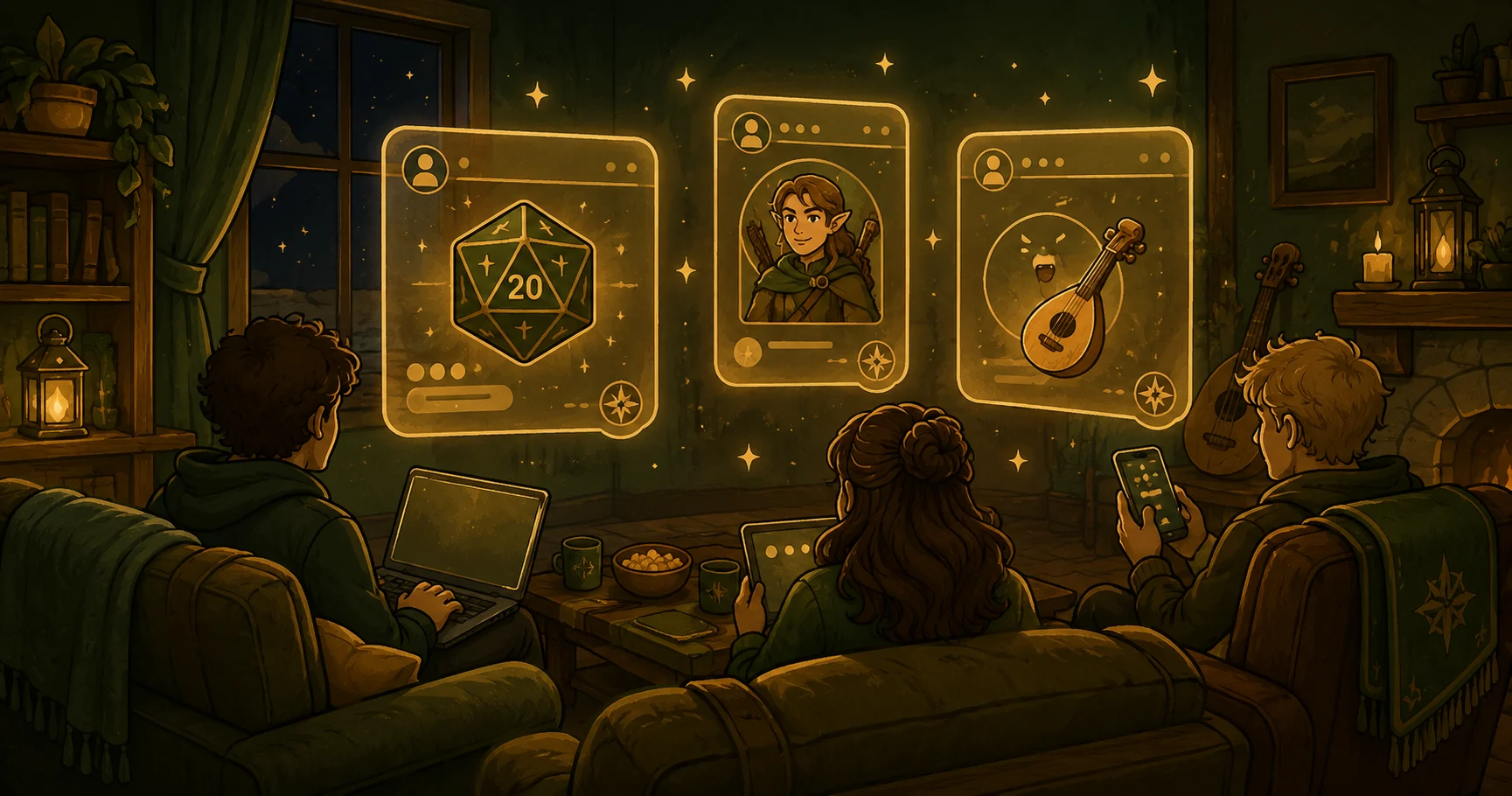
What you need
- A Discord server where your table hangs out, with a channel you want to play in. You need permission to add a bot to it, so if it is not your own server, ask whoever runs it.
- An AI agent with your own subscription. Tavernbard is the game engine (dice, rules, memory); the storytelling runs on the AI you already pay for, at full strength, with no model downgrade and no AI limits from us. This guide uses Claude Code as the worked example; any supported agent harness works.
- A Tavernbard account, free at tavernbard.com. You can also create it inside the app.
1. Download and install
Run the installer and open Tavernbard. It installs under your own user account, needs no administrator rights, and changes no system settings. Everything the host service needs ships inside the app, so there is nothing else to install.
2. Sign in
In the Tavernbard account card, sign in with your email and password or press Sign in with Google. That is the whole setup: the app provisions everything it needs behind the scenes and stores it in your operating system's keychain. There is no key to copy and nothing to paste.
This is a login to your Tavernbard account only. The app never sees your AI tool's credentials, and it is not a Discord login either: your account is your email, and Discord is connected separately in step 4.
3. Choose the AI account that runs your DM
The app asks which AI account should run your Dungeon Master and checks whether it is installed and signed in. If something is missing it shows the exact steps and a Check again button - install it in another window and come back. You sign in to that tool the normal way, in its own app, so the app never sees its credentials. Before you reach a table it runs one real game master turn, so you know it works.
4. Add the bard to your Discord server
The first card on the app's home screen is Discord servers. Press Connectthere. Your browser opens Discord's usual authorize page, you pick the server, and it sends you straight back, with the server now in the list. That one screen both puts the bard in your server and connects the Discord account you picked it with, so the app knows which servers to offer you next.
It asks for four permissions and no more: see channels, send messages, send messages in threads, and read message history. That is exactly what a game master needs to read what you address to it and answer with dice results, character cards, and encounter trackers. It also reads your username and the list of servers you are in, which is what draws the server picker - it can never post as you.
This is done in the app, not here: setting up a table is the desktop app's job, and it is the only place a campaign is created or connected.
5. Pick the channel
Create a campaign in the Campaigns card, then press Connect next to it, and pick the server, then the channel. The servers offered are the ones you added in step 4. Only channels the bot can post in are listed, and only channels you have Manage Channels on can be chosen.
The bard greets the channel and the table is live. Nothing is typed in Discord.
6. Play
Keep the app running while your table plays. Closing the window keeps the table up: the app moves to the tray or menu bar until you press Stop or Quit. Jump to how a table plays below.
How a table plays
- Address the game master by mentioning @Tavernbard or replying to one of its messages.
- Everything not addressed to the bard is table talk. The game master never sees it, so put anything it needs into a message you address to it.
- Every player can have their own side chat. Send the bot a direct message. Nothing else - it works out which table you mean on its own, and
/campaignswitches it if you play at two. That private line is theirs alone: questions for the game master, something attempted in secret, or a look at their own character sheet. Each player opens it themselves, because a direct message is between them and the bot. See what your game master can do.
A channel is missing from the list
The app only offers channels Tavernbard can see and post in. A channel missing from the list is one where it can do neither, and the fix is in Discord, not in the app.
- In Discord, right-click the channel your table plays in and choose Edit Channel, then Permissions.
- Under Roles/Members, add the Tavernbard role if it is not there.
- Allow View Channel and Send Messages for it, and save.
- Back in the app, press Back and select the server again. The channel list is read fresh from Discord each time.
Two other reasons a channel can be absent. Only ordinary text channels are listed - not voice, forum or announcement channels, and not threads. And a channel you can see but not select is a different thing: selecting one needs Manage Channelson it, which is about your own permissions rather than Tavernbard's, and the app says so on the row.
Troubleshooting
- The bard stopped responding: check the app is still running, either open or in the tray. The table goes quiet when the host machine sleeps.
- The session got confused: post
!tavernbard resetin the channel. The campaign state is safe on the server; the game master rereads it and picks the story back up. - The channel you want is not in the list: Tavernbard cannot see or post in it. See a channel is missing from the list above.
- You do not run the Discord server:the app binds a channel you hold Manage Channels on, so ask the server's admin for that permission on the one channel your table plays in. Whoever holds it can also add the bard to the server in the first place.
- Wrong channel linked: unlink it in the app and link again. The story is kept.